

Custom domains for Studios allow you to publish your entire AI Studio marketplace on your own branded domain, giving your users a seamless experience under your own URL.
Overview
When you connect a custom domain to your Studio, all the apps within that Studio become accessible under your branded domain. This is ideal for:- Creating a professional AI marketplace or portal under your brand
- Providing a unified experience for all your AI apps
- Building trust with your audience through a recognizable URL
- Removing CalStudio branding from your Studio
Prerequisites
Before setting up a custom domain for your Studio, ensure you have:CalStudio Pro Plan
Custom domains are available on Pro plans and above
Live Studio
Your Studio must be published and live before adding a custom domain
Domain Ownership
A registered domain with DNS management access
Step-by-Step Setup Process
Step 1: Navigate to Your Studios
- Log in to your CalStudio dashboard
- Go to the Studios page to see your list of Studios
Step 2: Open Studio Options
- Find the Studio you want to connect a custom domain to
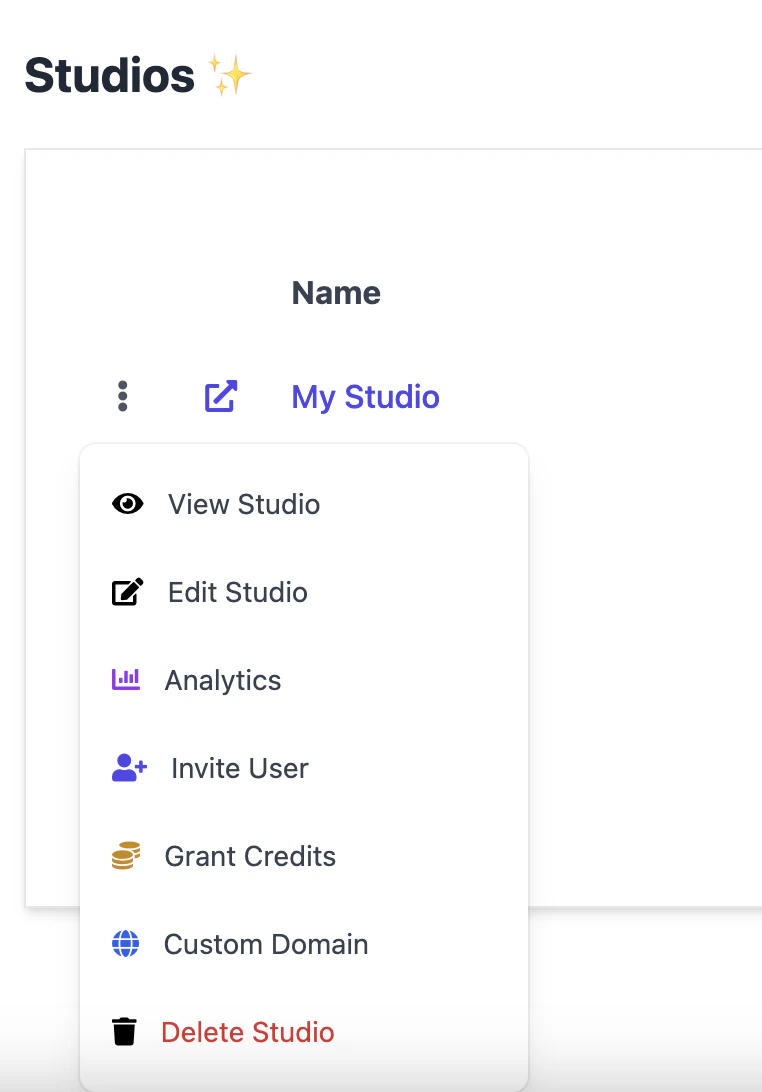
- Click the three-dot menu (⋮) next to the Studio name
- You’ll see the following options:
- View Studio
- Edit Studio
- Analytics
- Invite User
- Grant Credits
- Custom Domain
- Delete Studio
Step 3: Enter Your Domain
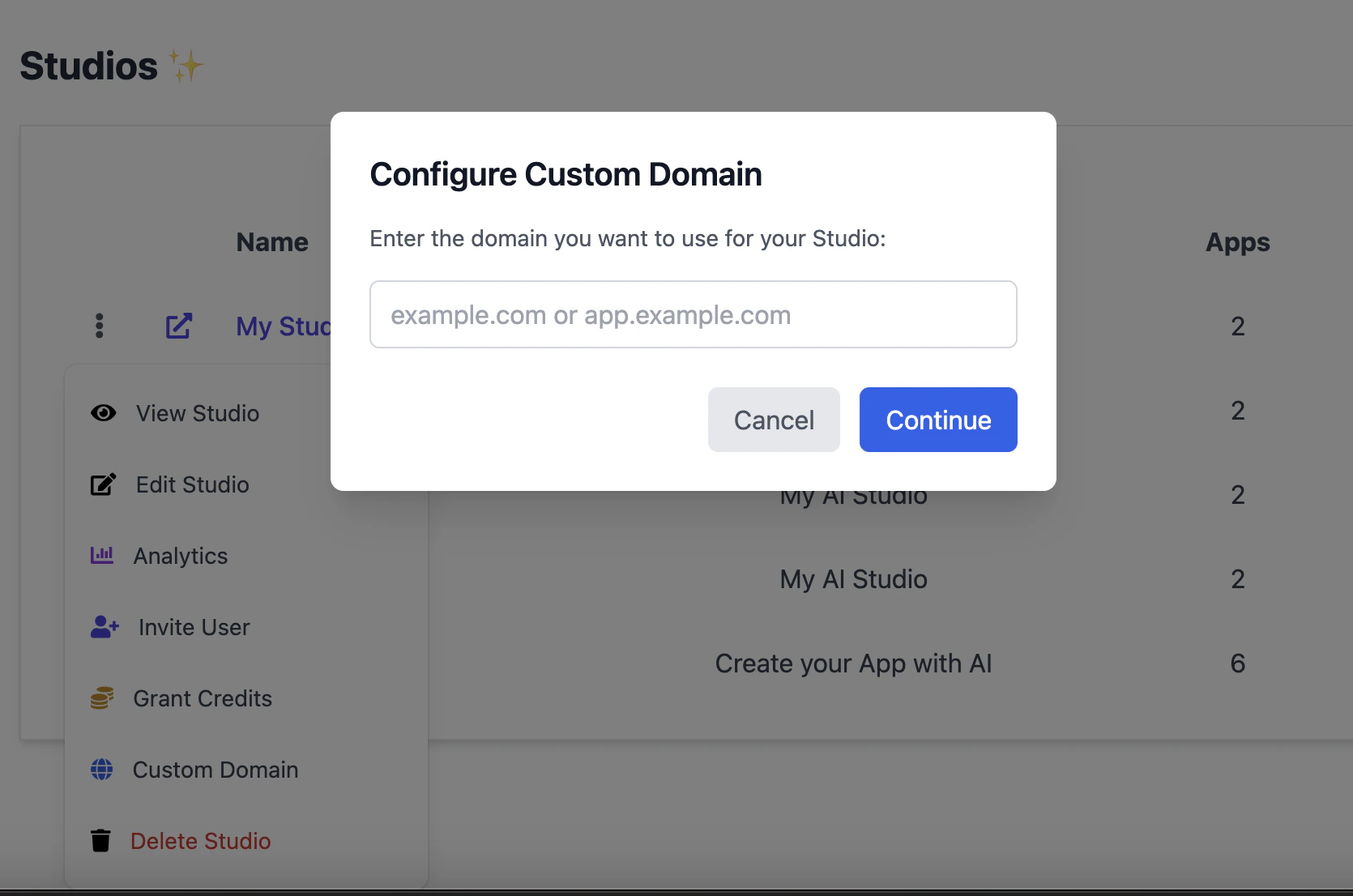
- Click “Custom Domain” from the menu
- The Configure Custom Domain dialog will appear
- Enter the domain you want to use for your Studio:
- Root domain:
yourdomain.com - Subdomain:
app.yourdomain.comorstudio.yourdomain.com
- Root domain:
- Click “Continue”
Step 4: Configure DNS Records
After clicking Continue, CalStudio will provide you with CNAME records to add to your DNS provider.- Subdomain (Recommended)
- Root Domain
For subdomains like
studio.yourdomain.com, you’ll receive two CNAME records:-
SSL Certificate Validation Record:
- This CNAME record is required for SSL certificate validation
- It will have a long, unique name starting with an underscore
- The value points to AWS Certificate Manager for validation
-
Studio CNAME Record:
- This points your subdomain to your CalStudio Studio
- Name: Your chosen subdomain (e.g.,
studio) - Value: An AWS load balancer URL
Subdomains are recommended because they are easier to configure and don’t affect your main website or email settings.
Step 5: Add Records to Your DNS Provider
Add the CNAME records to your DNS provider. Here’s how for popular providers:Cloudflare
Cloudflare
- Log in to Cloudflare dashboard
- Select your domain
- Go to DNS > Records
- Click Add record
- Type: CNAME
- Name: Paste the long underscore name (e.g.,
_ce016fc2...) - Target: Paste the AWS validation value
- Proxy status: DNS only (gray cloud)
- TTL: Auto
- Type: CNAME
- Name: Your subdomain (e.g.,
studio) - Target: Paste the AWS load balancer URL
- Proxy status: DNS only (gray cloud)
- TTL: Auto
GoDaddy
GoDaddy
- Sign in to GoDaddy Domain Control Center
- Select your domain
- Click DNS > Manage DNS
- Click ADD under records
- Type: CNAME
- Host: The record name (remove your domain from the end if GoDaddy adds it)
- Points to: The target value
- TTL: 1 hour
- Save both records
Namecheap
Namecheap
- Sign in to Namecheap
- Go to Domain List > Manage
- Select Advanced DNS
- Click Add New Record
- Type: CNAME Record
- Host: The record name (without your domain)
- Value: The target value
- TTL: Automatic
- Save all changes
Google Domains
Google Domains
- Sign in to Google Domains
- Click your domain
- Go to DNS > Manage custom records
- Click Create new record
- Type: CNAME
- Host name: The record name
- Data: The target value
- TTL: 1 hour
- Save both records
Step 6: Verify Deployment
- Wait for DNS propagation (usually 5-30 minutes for CNAME, up to 48 hours for NS)
- Visit your custom domain in the browser
- Your Studio and all its apps should now be live at your domain
SSL Certificates
CalStudio automatically provisions and manages SSL certificates for all custom domains using AWS Certificate Manager. Your Studio will be served securely over HTTPS — no additional configuration required.
Troubleshooting
Custom Domain option is grayed out or missing
Custom Domain option is grayed out or missing
- Make sure your Studio is live (published). Custom domains can only be added to live Studios.
Domain not working after 48 hours
Domain not working after 48 hours
- Verify DNS records are correctly configured
- Check for typos in the domain name
- Ensure no conflicting A or AAAA records exist
- Contact support at support@calstudio.com with your domain details
SSL certificate errors
SSL certificate errors
- CalStudio automatically handles SSL certificates
- If using Cloudflare, ensure proxy is disabled (DNS only)
- Allow up to 24 hours for certificate provisioning
- Ensure the SSL validation CNAME record is correctly added
Email stopped working (root domain)
Email stopped working (root domain)
- This occurs with NS delegation for root domains
- You’ll need to recreate MX records in the new DNS system
- Consider using a subdomain instead to avoid email issues
Want to remove the custom domain
Want to remove the custom domain
- Open the Studio options menu and click Custom Domain
- Remove the domain in the CalStudio dashboard
- Then update/remove DNS records at your provider
- Your Studio will revert to its default CalStudio URL
Next Steps
Custom Domain for Apps
Set up custom domains for individual AI apps
White-Label Branding
Remove all CalStudio branding (Pro Plus)